Sideloading Music on Spotify
specific
In your Spotify Library, there’s a folder called Local Files. It displays and lets you play, as you’ve probably guessed, local audio files.
This article’s about the very specific use case wherein you:
- happen to own a Mac
- have an android phone
- wish to listen (on said phone) to music not available on Spotify, without having to play it from your file explorer like a sleek user interface-deprived peasant
Along with the 3 use cases, there are also 3 main steps to achieve this: obtaining the file, converting it, and uploading it to your phone.
Obtaining
Skip to this section of the article if you’ve already got your desired files sitting pretty on your hard drive.
Otherwise, there are many ways of acquiring files.
This article has the seven-seas tag, so it’s safe to assume you, dear reader, are not paying for them, or these words are falling on far-away ears located in the well-off part of the neighborhood.
The usual suspects for ‘alternative’ music hosting (sticking it to the man*) are, ordered by quality: Bandcamp, archive.org, SoundCloud, and, god forbid, YouTube.
Format: Audio files should preferrably be of a high-quality, lossless format like
.flacor.wav, although you will have to downgrade to an inferior format or delete your old memes if you don’t have enough storage on your phone.
Subverting alphabetical organization, We’ll start with obtaining music from bandcamp.
Teal Parallelogram next to text ‘bandcamp’ set in Helvetica Neue 16pt, White
Free files have a dedicated download button on each track. For paid files, the CLI tool bandcamp-dl is easiest to use, at the expense of quality (128kbps).
The usual and tiresome truism of the best things in life being free doesn’t apply here: pay for your music if you want audiophile-quality tracks (or use soulseek if said music is well-known enough to be hosted there)
After installing bandcamp-dl through your method of choice (I used homebrew for convenience), rip a track like so:
bandcamp-dl someband.bandcamp.com/linktotrack -r --base-dir localpath/to/musicThe -r flag embeds album art into the file. Use -n instead if you want want to use your own images.
To rip an entire album, use the link to the entire album in the URL argument instead.
*or the many men from Warner Bros. having a ‘little chat’ about copyright with the skinny guys at Spotify who drink matcha and bang on computers running Arch or something all day
And now for SoundCloud, assuming the song in question doesn’t have a download button either.
Orange Cloud Intersected by Lines on the Left, above text ‘SOUNDCLOUD’ set in Interstate Bold 16pt, Orange
The site doubledouble lets you easily download files from SoundCloud, Deezer and vice versa.
Paste your link in, check Add Metadata in Spotify Settings, then download. This part of the article isn’t much longer than its heading.
Red Rounded Rectangle With White Right-facing Chevron next to text ‘YouTube’ set in YouTube Sans Condensed 20pt, Black
There are a plethora of options for ripping audio from YouTube videos, from online websites to the the battle-tested yt-dlp CLI tool, but for this guide I’ll be describing how to do it with the versatile app JDownloader.
JDownloader is a website scraper, so you can also obtain images, videos and subtitles. It’s great for batch downloading.
Once downloaded and opened, right-click in the Downloads tab and select Add New Links.
Paste in your Youtube link(s) and specify your preferred download path. Press continue and your links will appear as a list in the LinkGrabber tab.
Configure the File Type settings in Views on the right to only select Audio File (or maybe Image if you want the thumbnail).
Then right-click on your link and press Start Downloads. The file will appear in your selected download path.
Archive.org (imagine there’s a long-winded logo description here)
There’s a Download Options section below and to the right of your chosen audio files. Select your tracks first, then specific audio format to download.
Conversion
The most seamless way to edit file metadata is with the app Mp3tag, which can be downloaded for free on Windows or the App Store on MacOs (sailing the seven seas is also an option).
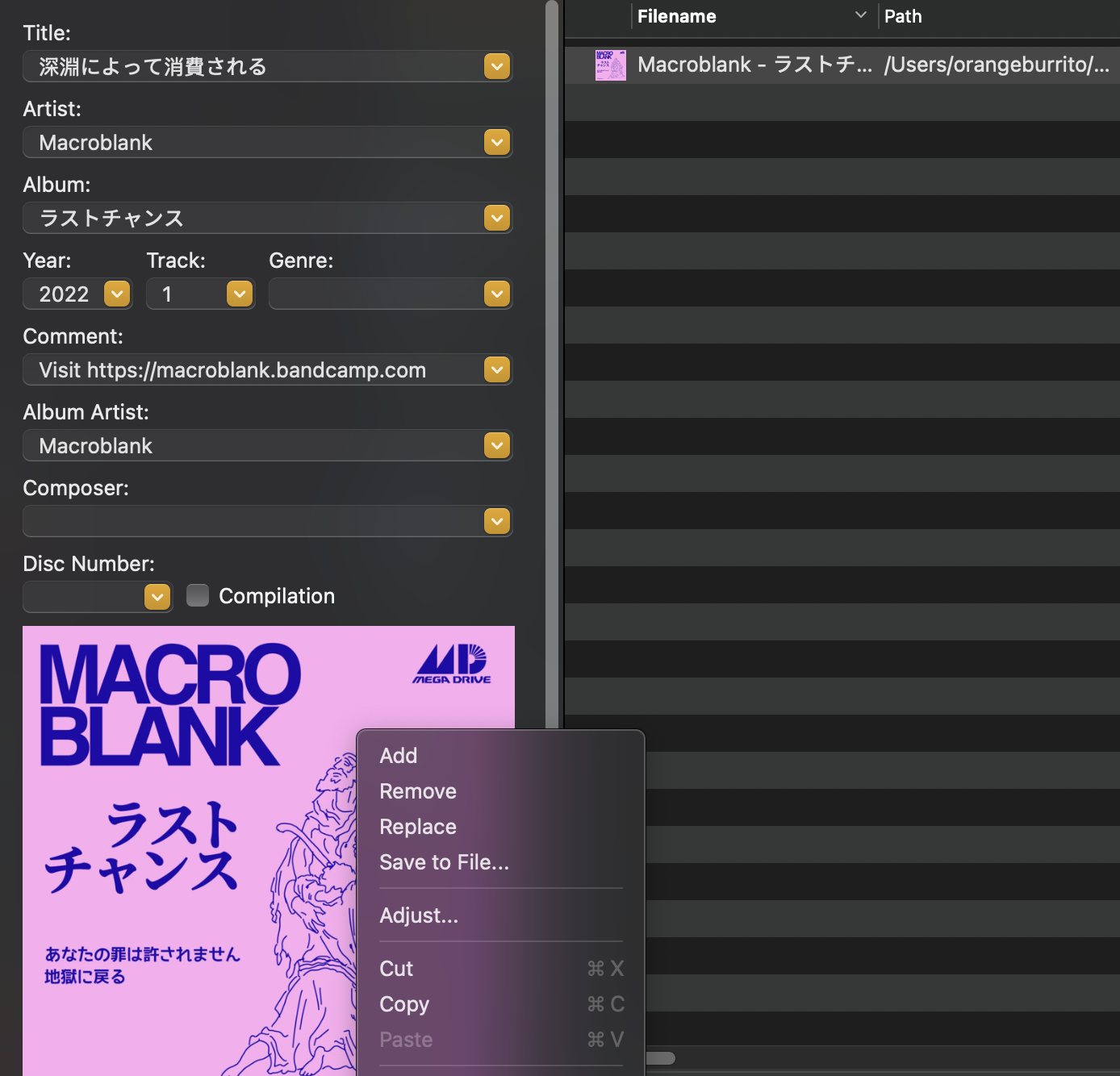
Drag and drop the files you’d like to gussy up into the app’s UI (or use File > Open) to begin editing its metadata in the sidebar.
Example of a song and its metadata. Right-click on the album cover to Add or Replace an image
Alteratively, the CLI tool mid3v2 is free and works just as well. It’s part of the audio metadata python module Mutagen.
M(e)tagen
Install like so, assuming you already have python3 installed.
python3 -m pip install mutagenInspect a file’s metadata and existing tags like so:
mutagen-inspect somesong.flac

// EXAMPLE RESULT
-- somesong.flac
- FLAC, 117.00 seconds, 44100 Hz (audio/flac)
TITLE=Ocean Ears
ARTIST=Tilemaker, The Composer
DATE=2024
ALBUM=Not Another Roguelike (Original Soundtrack)
TRACKNUMBER=8
ALBUMARTIST=Tilemaker, The Composer
To edit its metadata:
mid3v2 -t "Song Name" -a "Artist Name" -A "Album Name" -p "albumcover.png" somesong.flacNote: Edit specific tags with the —TAGNAME flag. To set the album artist, use
--TPE2 "Album Artist Name"
Transferral
With your files freshly hot off the press and polished to metadata perfection, begin the process:
If you dislike the laboriously cably method of plugging your phone into your computer and launching the ever-clunky Android File Transfer, the easiest option (besides emailing it to yourself) is connecting to your phone’s local FTP server, using a third-party file explorer.
Solid Explorer is an excellent choice. Download it via your method of choice (legal ports or piracy).
After launching said app, enable the FTP Server in the TOOLBOX section in the sidebar. The url should match your phone’s local IP address, e.g. ftp://192.168.1.111:9999
Keep your phone open while copying files.
On your computer, install the CLI tool ncftp. We’ll be using ncftpput to, as the name implies, put files onto your phone.
Navigate to your audio file directory and upload like so:
ncftpput ftp://192.168.1.111:9999 MobileDocumentsPath/SomeFolderOnYourPhone pathto/somesong.flacRepeat for all files, then launch Spotify and go to Local Files. If done correctly, your songs should automatically appear.
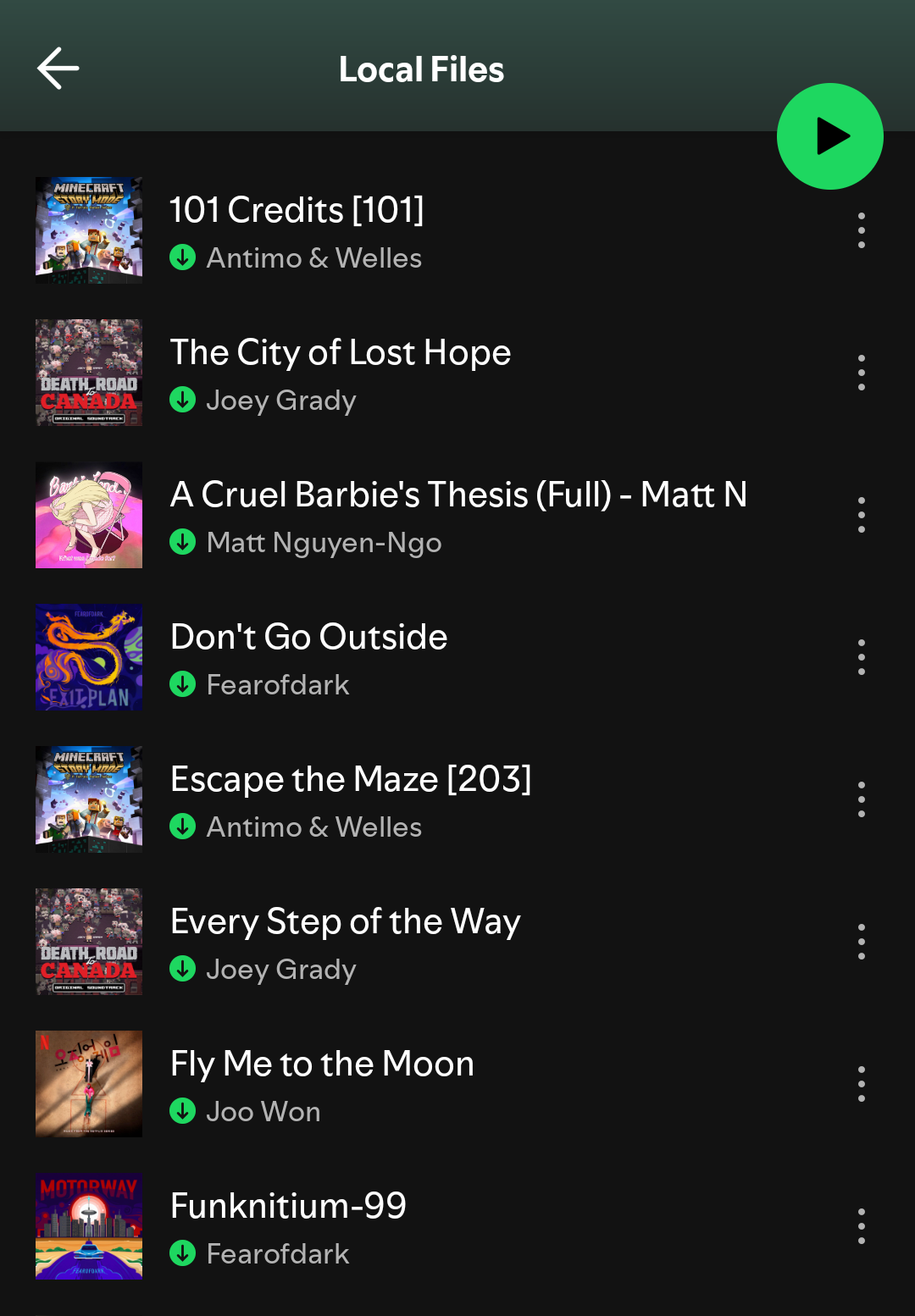 Unfortunately, there isn’t a way to sort your songs in a reasonable order